Business Technology
application automation programming, application object library, application object library in programming, application object model, COM automation programming, COM object library, COM type library, enterprise automation tools, Excel object model, Excel VBA automation, Excel VBA developer guide, Microsoft Office object model, object oriented automation, Office automation tools, Office interop programming, software automation programming, VBA automation techniques, VBA object library, Windows COM libraries, Word object model
novabiztech
0 Comments
Application Object Library Explained: Complete Guide to Office Automation & COM Programming 2026
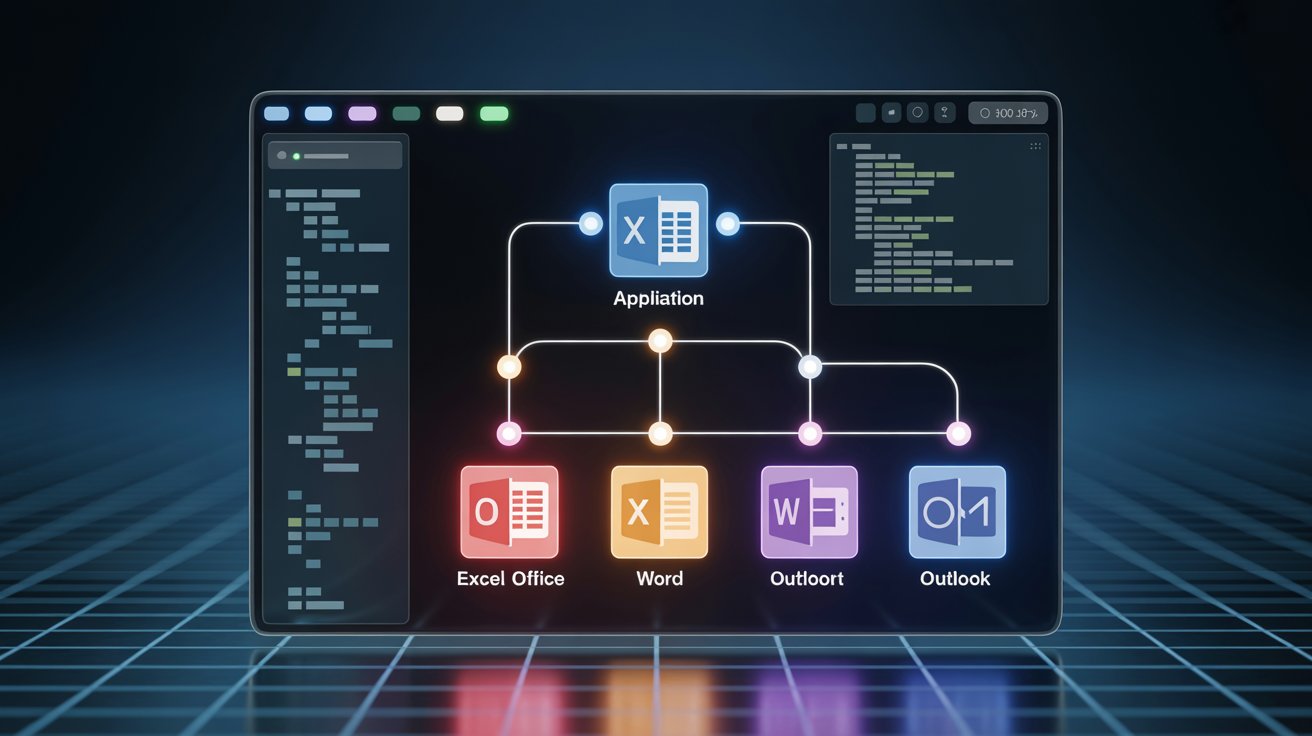
Introduction to Application Object Library
The application object library gives developers powerful control over Microsoft Office applications. It turns Excel, Word, and Outlook into programmable tools instead of simple interfaces.
This guide explains the application object library from basics to advanced use. You will learn about the application object model, COM integration, VBA techniques, and when to combine it with modern APIs. Whether you are new to “what is application object library in programming” or refining enterprise automation, you will find clear explanations and usable code.
What Is an Application Object Library?
Featured Snippet Definition: An application object library is a COM type library (.olb or .tlb file) that exposes an application’s object model to external programs. It defines the root Application object along with all related objects, properties, methods, and events. This allows developers to automate applications such as Excel and Word using VBA, C#, or Python.
Purpose
- Delivers structured access for reliable automation.
- Supports early binding for faster code and better developer tools.
- Provides reusable software components rooted in object-oriented programming.
- Enables integration between applications via COM objects.
Object-Oriented Programming Basics
The application object library builds directly on core OOP ideas. Here is what you need to know:
- Objects are live instances, like a specific Workbook.
- Classes act as blueprints inside the library.
- Properties let you read or change attributes.
- Methods perform actions.
- Events send notifications.
- Collections group similar items.
- Hierarchy creates parent-child relationships.
Simple Hierarchy Example
text
Application
 └─ Workbooks (Collection)
      └─ Workbook
           └─ Worksheets (Collection)
                └─ Worksheet
                     └─ Range
                          └─ Font, Interior, Borders
This tree structure lets you move from the top Application object to a single cell with dot notation.
How Application Object Libraries Work
Application object libraries rely on Microsoft’s Component Object Model (COM). The process is straightforward:
First, the library registers in the Windows Registry during installation.
In VBA, you add a reference through the Tools menu.
Next, you create an instance of the Application object.
Then, you navigate the hierarchy using dot notation.
Finally, the COM runtime manages communication, memory, and threading.
Early Binding vs Late Binding Early binding uses a specific library reference. It runs faster, shows IntelliSense, and catches errors during compilation.
Late binding declares variables as generic Object and uses CreateObject. It offers better compatibility across Office versions but runs slower and lacks IntelliSense.
In enterprise projects, I develop with early binding for speed and switch to late binding for wider deployment.
Types of Object Libraries (COM, .NET, VBA)
| Type | Technology | File Extension | Primary Use Case | Binding Support | Example |
|---|---|---|---|---|---|
| COM Object Library | COM/OLE | .olb / .tlb | Office automation, legacy systems | Early & Late | Microsoft Excel 16.0 Object Library |
| .NET Interop | .NET | .dll | Modern C# and VB.NET applications | Early | Microsoft.Office.Interop.Excel |
| VBA Object Library | VBA | Embedded | Macros inside Office applications | Early & Late | Built-in Excel/Word libraries |
VBA vs .NET Libraries Comparison
| Aspect | VBA Object Library | .NET Interop Library |
|---|---|---|
| Performance | Excellent with early binding | Good, with minor interop overhead |
| Development Environment | Visual Basic Editor inside Office | Visual Studio |
| Version Compatibility | Often version-specific | More flexible with PIAs |
| Error Handling | On Error GoTo | Try / Catch |
Application Object Library in VBA: Excel & Word Examples
Here are ready-to-use VBA object library examples.
Example 1: Excel Report Generation (Early Binding)
vba
Sub GenerateSalesReport()

Dim xlApp As Excel.Application

Dim wb As Excel.Workbook

Dim ws As Excel.WorksheetxlApp.Visible = False ‘ Run silently in production
Set ws = wb.Worksheets(1)
.Range(“A1”).Value = “Monthly Sales Report”
.Range(“A1”).Font.Bold = True
.Range(“A2”).Value = “Generated on ” & Date
End With
xlApp.Quit
Set wb = Nothing
Set xlApp = Nothing
End Sub
Example 2: Controlling Word from Excel (Late Binding)
vba
Sub ExportToWord()

Dim wordApp As Object

Set wordApp = CreateObject("Word.Application")

wordApp.Visible = TrueSet doc = wordApp.Documents.Add
wordApp.Quit
End Sub
For more depth on the hierarchy, explore the Excel VBA Object Model Guide.
Real-World Use Cases of Application Object Libraries
In over 10 years of enterprise automation, I have applied the application object library to:
- Consolidate financial reports from dozens of Excel files every night.
- Migrate data from legacy Access systems into modern Excel setups.
- Scan thousands of Word documents for corporate formatting compliance.
- Generate personalized Outlook emails with attachments straight from Excel data.
These examples prove the application object model delivers real value in production.
Benefits and Limitations of an Application Object Library
Benefits
- Speeds up development with IntelliSense.
- Gives direct access to native features.
- Offers strong performance in desktop tasks.
- Comes with mature documentation.
Limitations
- Works mainly on Windows.
- Version-specific references can complicate deployment.
- Requires careful cleanup to avoid memory leaks.
- May trigger security prompts in recent Office versions.
How to Use an Application Object Library (Step-by-Step)
Follow these steps to get started quickly:
- Open the VBA Editor (press Alt + F11).
- Go to Tools > References.
- Check the needed library (for example, Microsoft Excel 16.0 Object Library).
- Declare variables with specific types.
- Create the Application instance and release objects when finished (Set obj = Nothing).
Detailed instructions are available in the Microsoft Learn guide on adding object library references.
Common Errors and Troubleshooting
- “User-defined type not defined” — Add or repair the library reference.
- Runtime error 429 — Try late binding or repair Office.
- Reference conflicts — Adjust priority or use late binding.
- Memory leaks — Always quit the Application object and clear variables.
Best Practices When Using an Application Object Library
- Develop with early binding, then test with late binding.
- Fully qualify objects (use Excel.Workbook).
- Apply With blocks for cleaner, faster code.
- Add solid error handling everywhere.
- Document library versions for production systems.
- Wrap complex logic in reusable classes.
Application Object Library vs Modern APIs
COM Object Model vs Microsoft Graph API The classic application object library provides deep, stateful desktop control. Microsoft Graph delivers a unified REST endpoint for cloud services like Outlook, OneDrive, and Teams.
Many teams combine both: use COM for heavy local processing and Graph for cloud synchronization and sharing.
Object Model vs Office Scripts VBA with object libraries excels at complex local tasks. Office Scripts (TypeScript-based) work better for web-based Excel automation.
See the Microsoft Graph overview for cloud alternatives.
Future of Object Libraries and Automation
COM-based application object libraries will keep supporting essential desktop automation. Microsoft continues investing in Microsoft Graph, Power Automate, and Office Scripts.
The strongest future solutions will blend classic object libraries for intensive local work with cloud APIs for collaboration.
FAQ
What is an application object library? It is a COM type library that exposes an application’s objects, properties, and methods for programmatic control and automation.
How does an application object library work in VBA? You add the reference, declare typed objects, create the Application instance, and navigate the hierarchy.
What are COM object libraries? Binary standards that let different languages interact with Windows applications at runtime.
Why are object libraries important? They enable structured, high-performance automation and full access to application features.
How do I add a library in Excel or Word? Press Alt+F11, choose Tools > References, select the library, and click OK.
Can I use application object libraries outside VBA? Yes — in C#, VB.NET, Python with win32com, PowerShell, and other COM-supporting languages.
What is the difference between early and late binding? Early binding is faster and offers IntelliSense but needs the reference. Late binding is more version-tolerant but slower.
Conclusion
The application object library stays a key technology for professional Microsoft Office and COM automation. Mastering the application object model, binding choices, and best practices helps you create reliable solutions that save time and reduce errors.
Actionable Tip for Developers: Start projects with early binding to boost productivity. Test thoroughly with late binding before deployment. Always release objects cleanly.
With these skills, you can move beyond simple macros to robust enterprise automation systems using the application object library.
Author: Alex Rivera Software Automation Engineer With over 10 years of hands-on experience building enterprise VBA and COM automation systems for financial reporting, data migration, and compliance workflows. I have deployed production solutions across manufacturing and finance sectors. GitHub: github.com/alexrivera LinkedIn: linkedin.com/in/alexrivera-automation
Share this content:




Post Comment